# Packages
This module allows you to make combinations of products categorized as packages. You can combine several products and offer packages at different prices.
To access this module go to Settings on the main menu and in the submenu choose Packages.
# Create packages
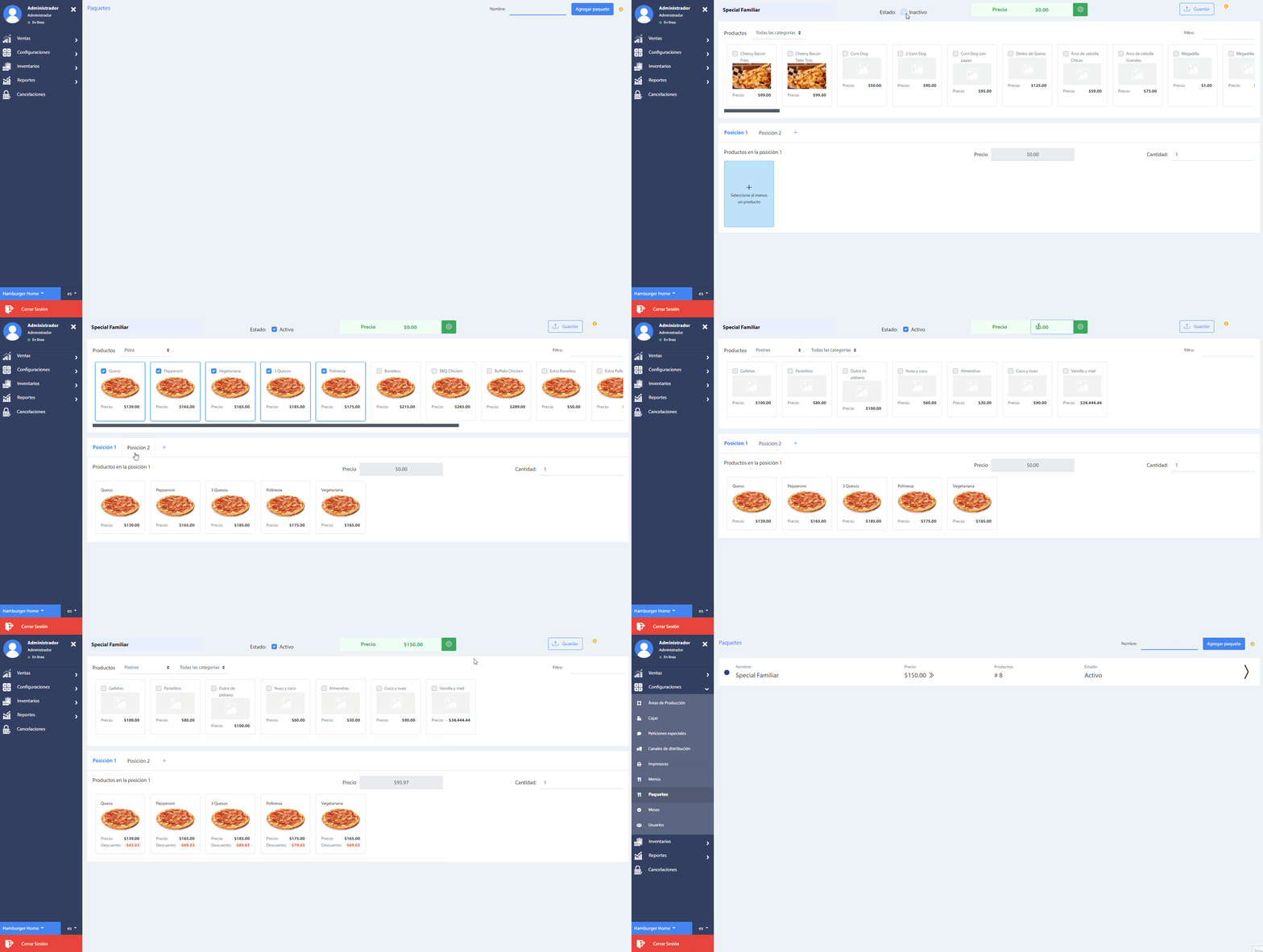
To create a package press the button Add Package, located next to the search filter by name.
The process required to add a package is summarized as follows:
- First, enter the name of the desired package. Remember that this name will be the one shown in the command line.
- Select the package status as active.
- Classify the possible products in Positions. By default, there are already two positions created, which are mandatory, so select at least one product in each position.
- Define the package price for the Restaurant and the distribution channels. However, only the price for the Restaurant is mandatory.
- Click on the button Save.
FOR EXAMPLE:
- First position: Main dish or base.
- Second position: Extra products.
- Third position: Sauces.
- Fourth position: Desserts.
It is recommended that the first position, define the main dish. However, you can classify the products in the order you require. In addition, the number of positions is not limited, so you can create the necessary ones to assemble different packages.
# Package order
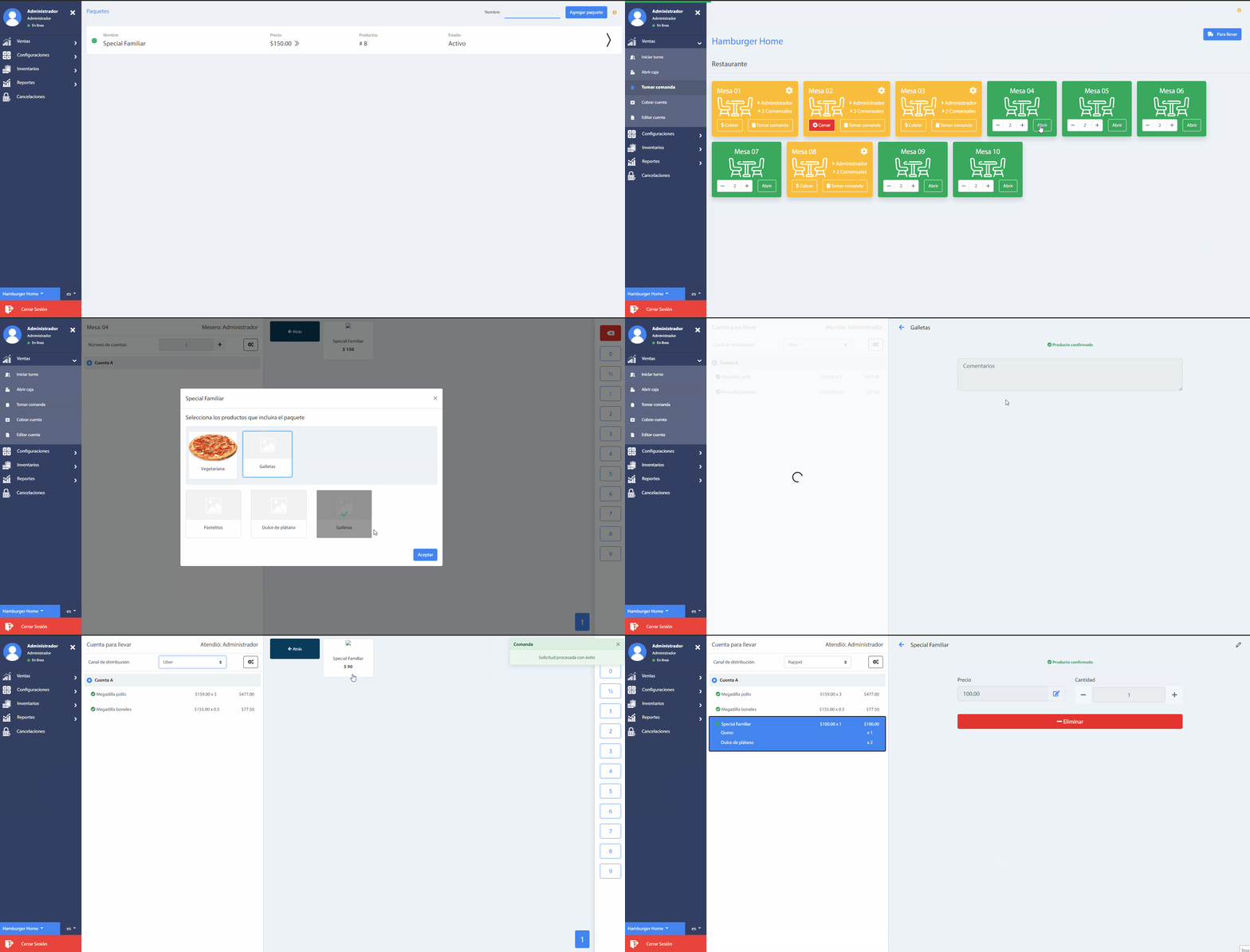
The created and active packages will be listed in the Packages category of the menu at the Take order section.
When you select a package, a pop-up window will appear, with the number of created items and the possible products in each one. The customer must choose a product for each position.