# Special requirements
In this section, special products are created, in which the client does not want certain supplies to be added to a product, this to have a list and make the taking of orders from consumers more efficient.
To access this section, go to the Settings menu, and from the drop-down menu choose the Special requests option.
# Specials - Products
A special product is different from other products, since the customer can choose the supplies he does not want to consume from the product.
Important
Before creating a special product, it is mandatory to select a category of the special, in case you do not have any required option, go to section Special Category.
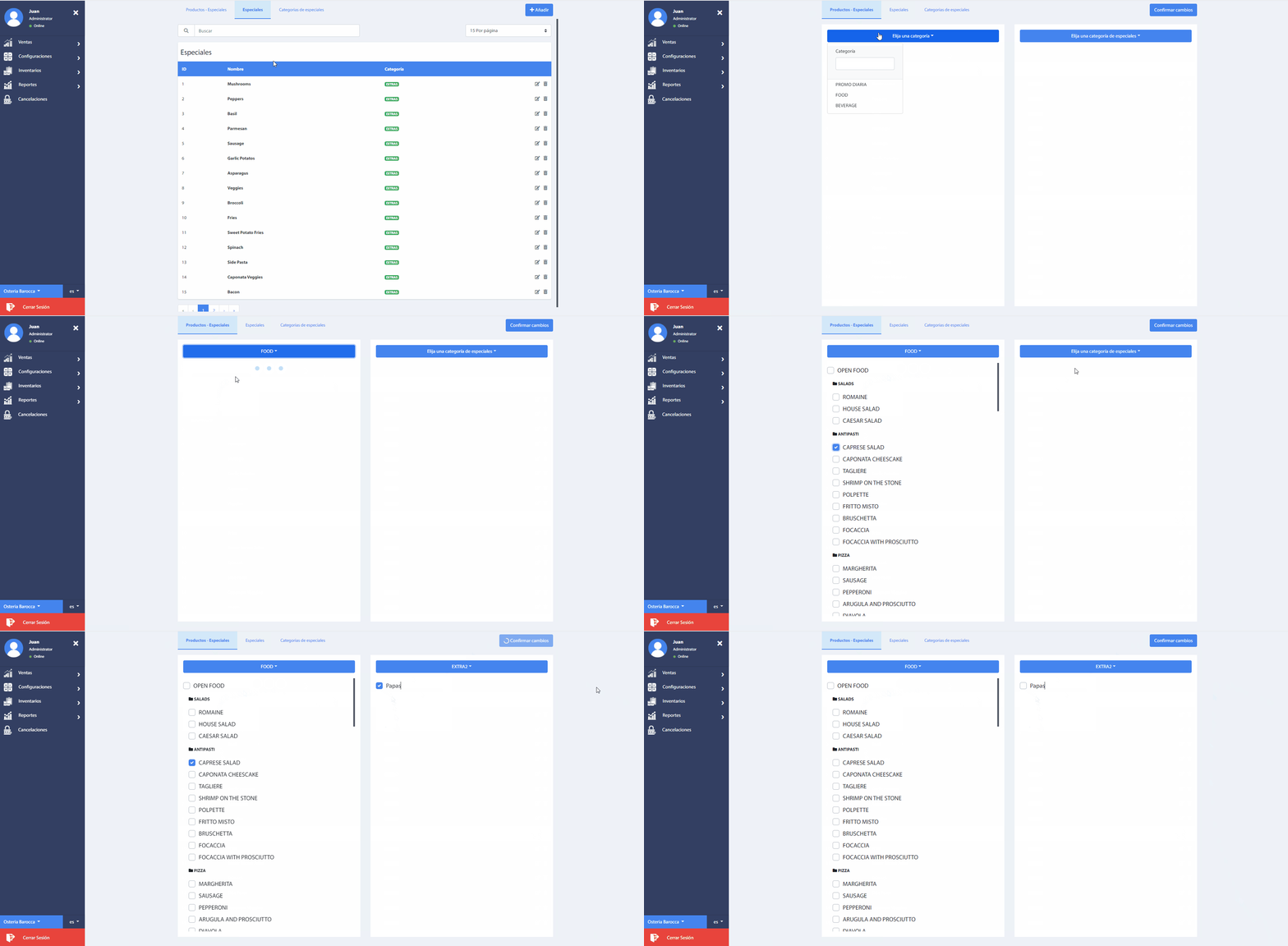
One or more special products can be added, as follows:
- First select the necessary products, which are filtered by product category.
- Next, choose a special category from the list, and select the necessary specials.
- Finally press the button Confirm changes. and that's it.
Specials created from the product will be available in the Add Order section, at the moment of selecting the product added in the created account.
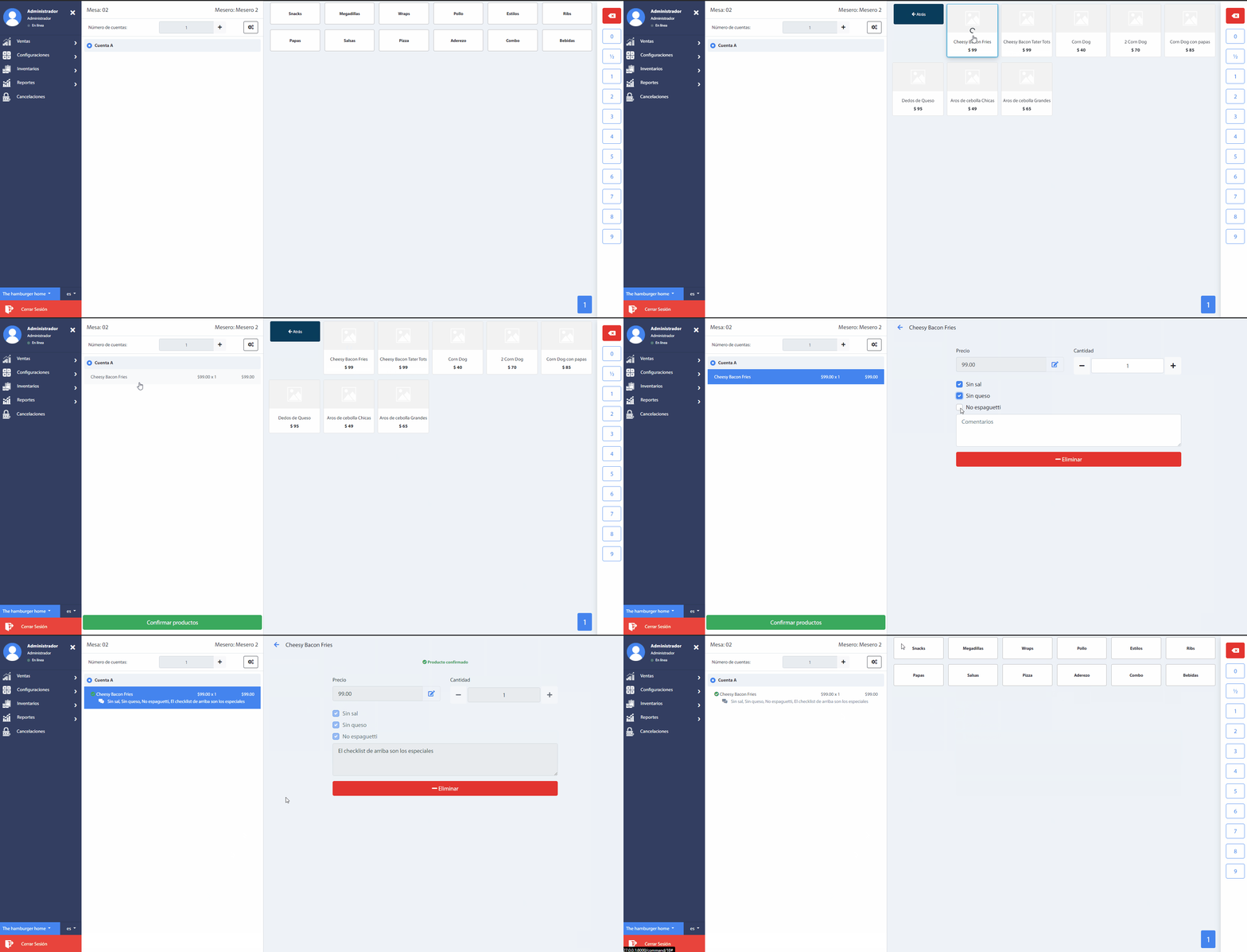
Note you can choose from the list of specials created in the product before confirming the products.
# Specials
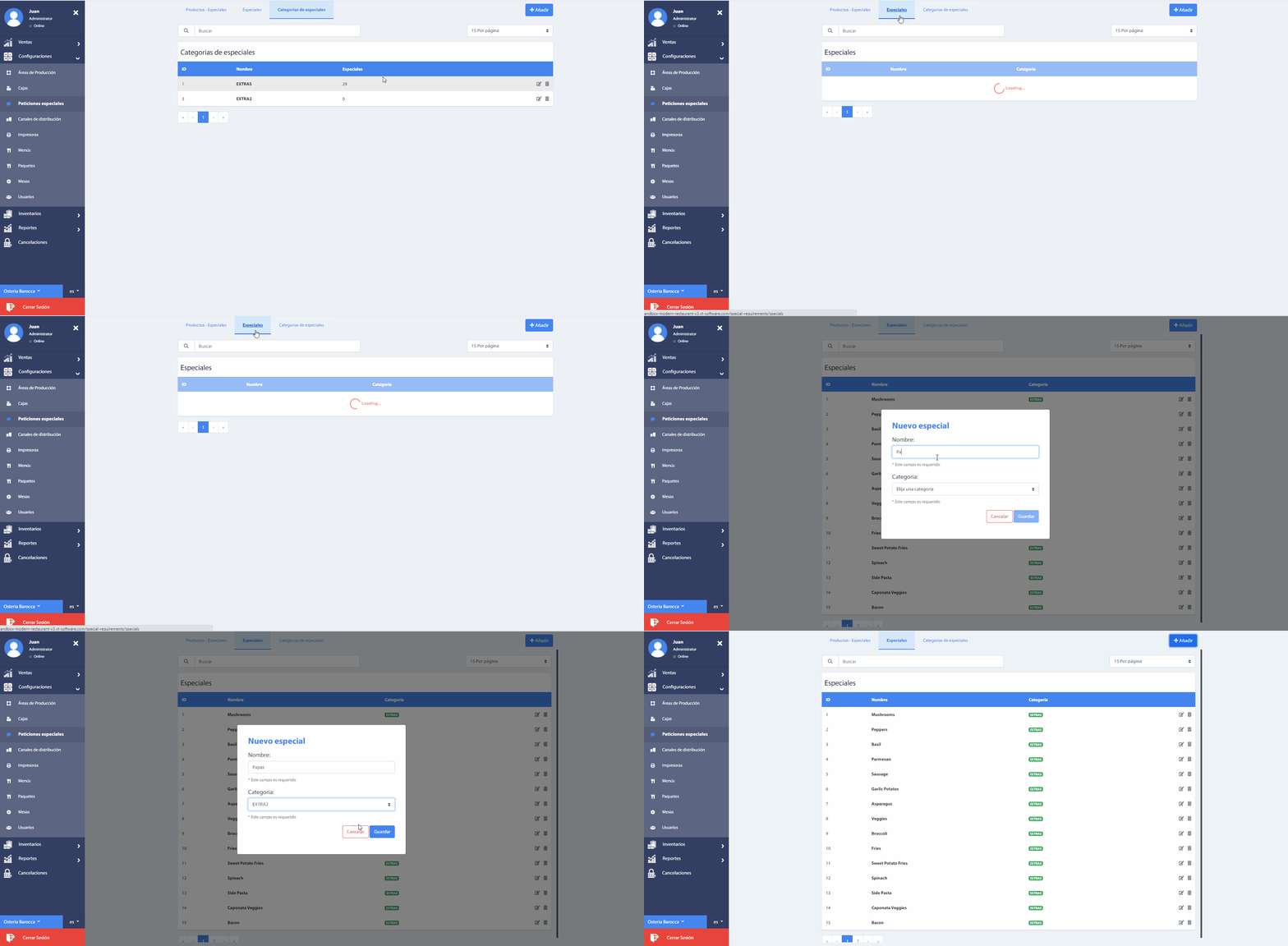
The special will be used to create a product without this type of supply, this will be created by clicking on the Add new button where a window will be displayed requesting the name of the special and the category to which it belongs.
Important
Before creating a special, it is mandatory to select a category of the special, in case you do not have any required option, go to section Special Category.
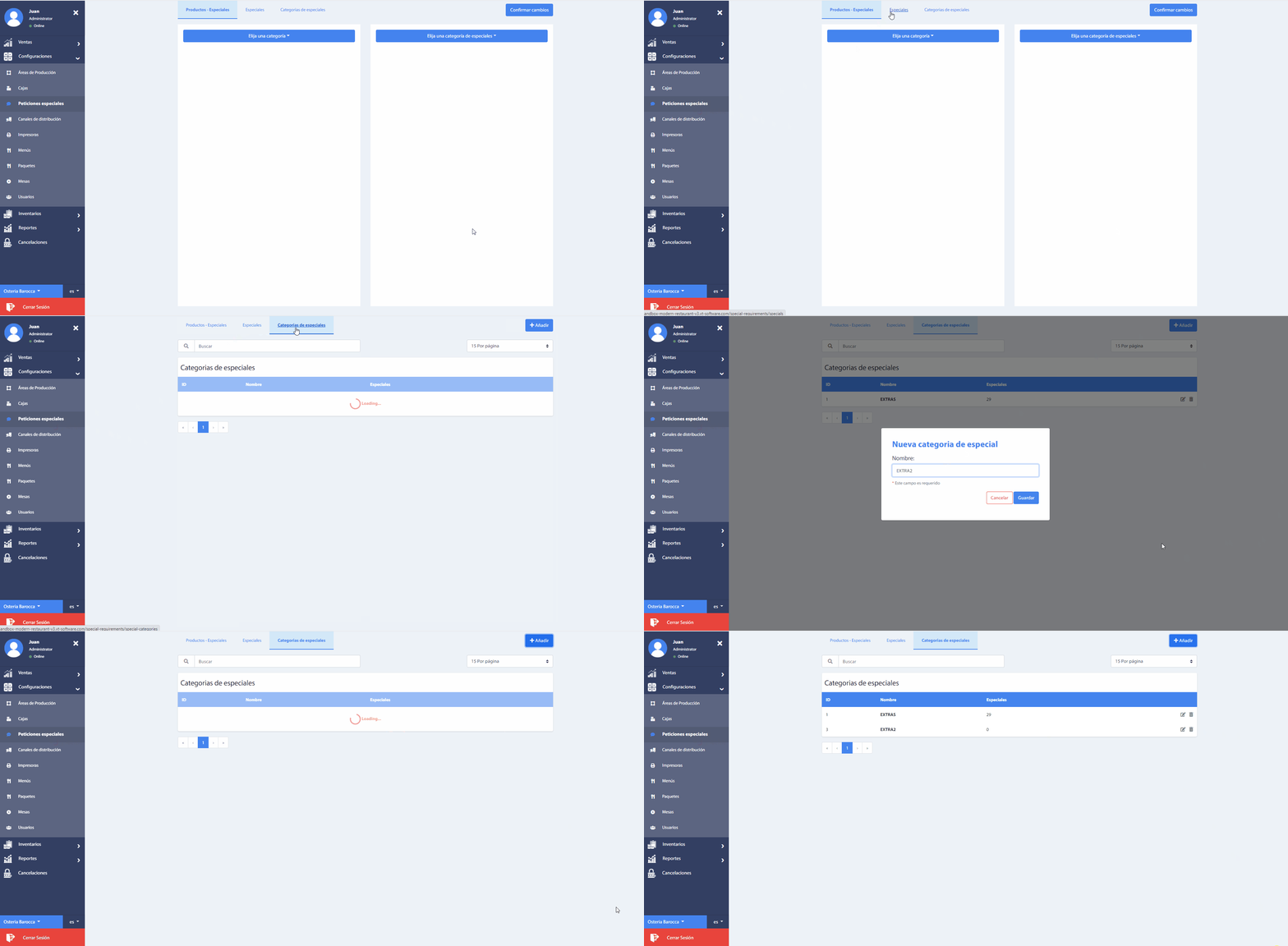
# Categories of specials
To add another category of the special we will address to the Categories of specials option. A list of the categories already created will be displayed with the options to edit and delete the record. To add a new category go to the Add button and then write the name and Save.