# Tables
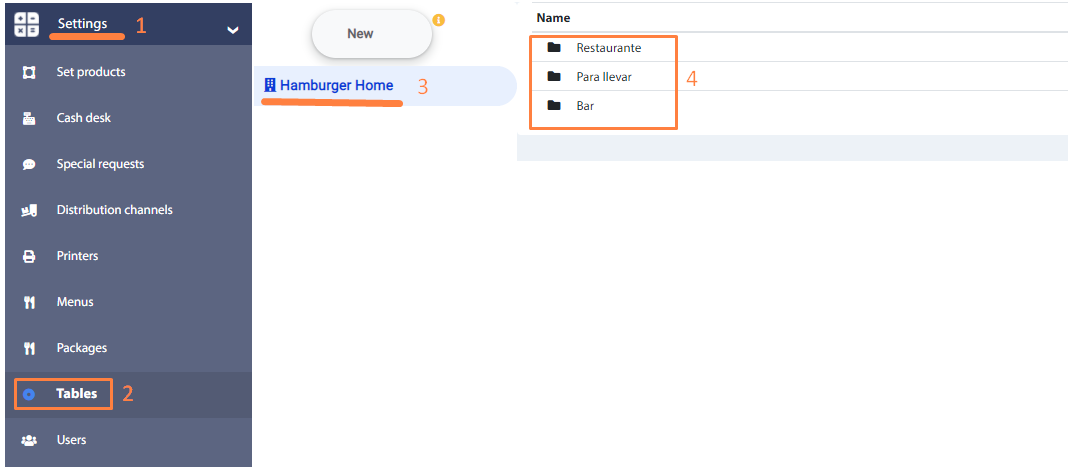
This menu option allows you to add tables that will be in each product sale unit (3). The main window of this function shows the consumer center areas (4).
# Consumer center
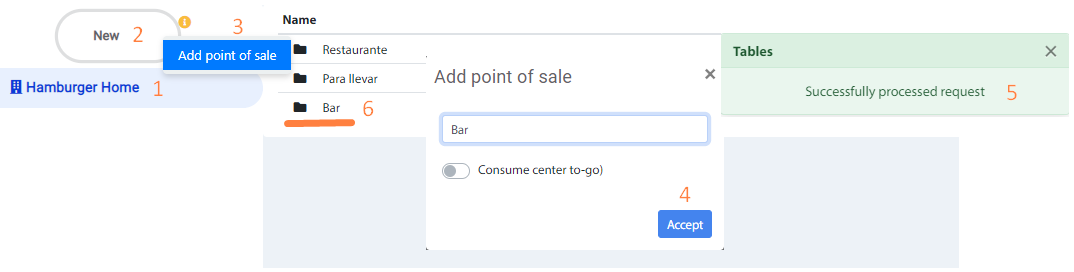
A consumer center area can be added as follows:
- Click on the product sales unit
- Click on the button New and then Add point of sale.
- In the pop-up window, enter the name of the consumer center and press the Accept. button.
Recommendation
The Consume center to go option applies only to centers of consumption that do not require physical tables, and refers to the customer's products will be to go. There must be only one type of take-away center and only one table Take-away, even if it is not a physical table.
Also, it is possible to change the name and delete a consumption center, by right clicking on the registration and choose the corresponding option in the menu.
# Tables per consumer center
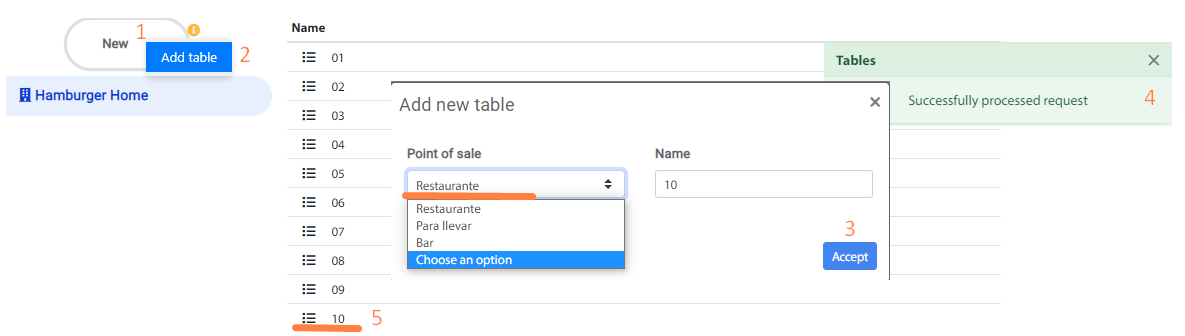
By double clicking on the center of consumption area, the registered tables will be shown (1), and it is possible to add other tables by clicking on the button "New " and choosing the option "Add table". In the pop-up screen, by default, the center of consumption in which you are navigating is selected, however, it is possible to change it with other available options. Clic on the Accept button.
To change the name and remove a table from a center of consumption, right click on the registration and choose the corresponding option in the menu.