# Menu
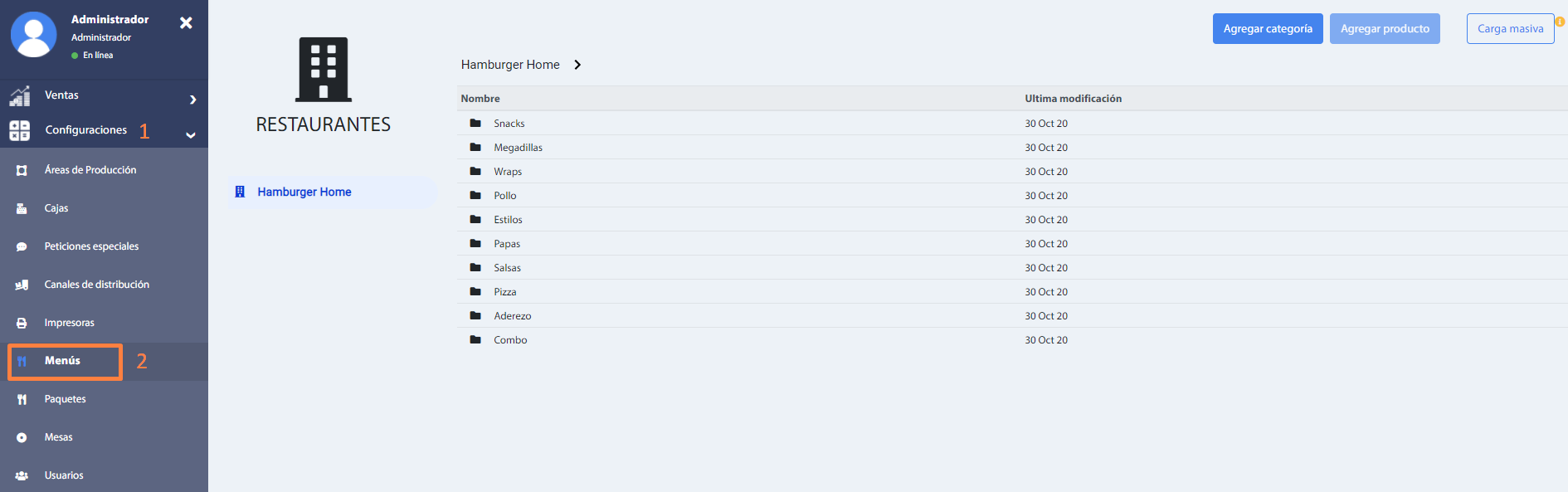
This section allows you to create categories of the products to be sold, as well as the products that will be in that category. The main window of this section looks as follows.
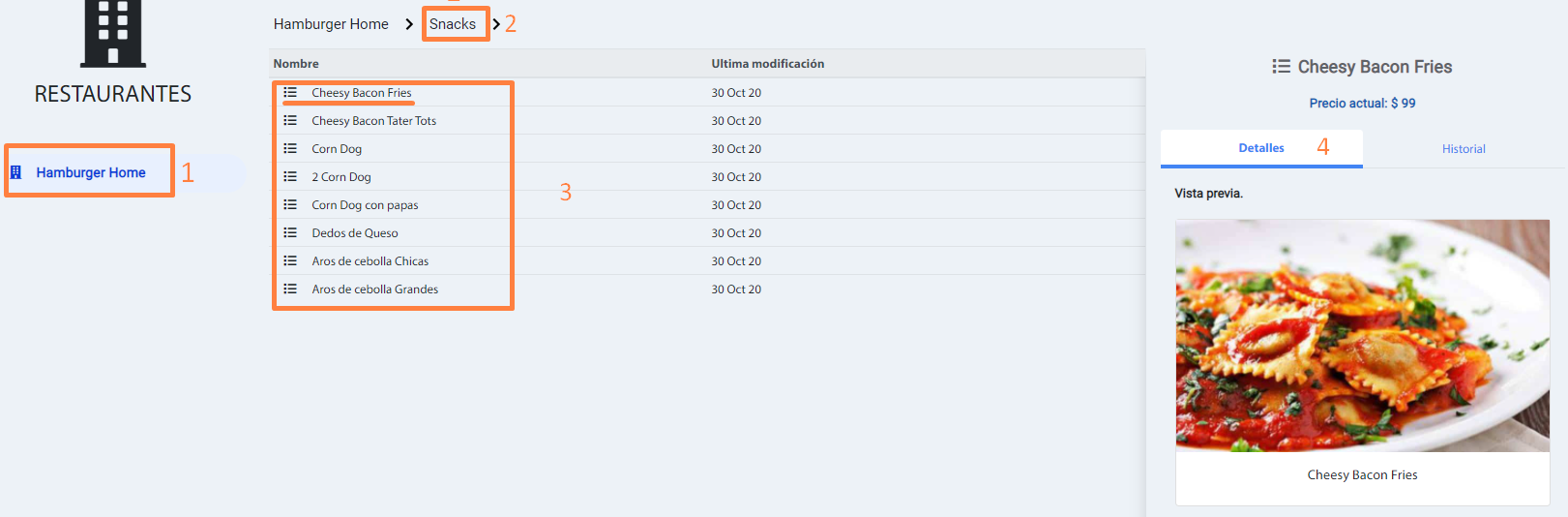
In the following image, the restaurants to which the user has access are visualized (1), when selecting a restaurant the categories of products are shown (2), when giving double click in a category the registered products will be shown (3), and when selecting a product (4) it will show us the information of the product and history of prices.
# Product categories
If required, you can add categories by selecting the Add category button. In the pop-up window, enter the desired name, and press the Save button to finish.
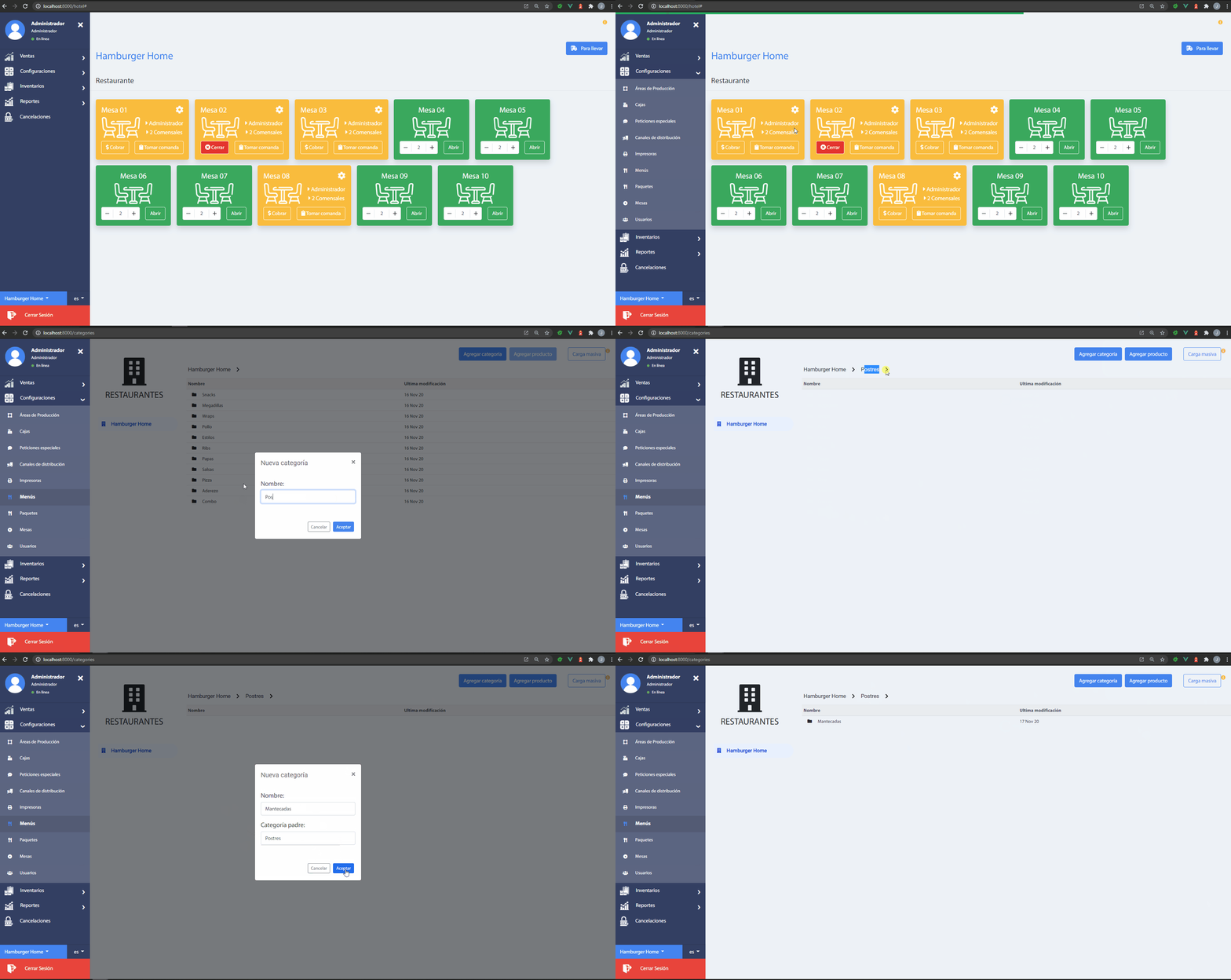
A product category can have other subcategories configured, i.e. it can be multilevel.
# Products of categories
A product is always added within a category or subcategory, therefore the necessary products can be added.
To add a product click on the button Add product, a window will be displayed which will allow you to add the main data, such as the name, type of product (food or drink) and price. Once the product has been added, it will appear in the list of products, in the category we are in.
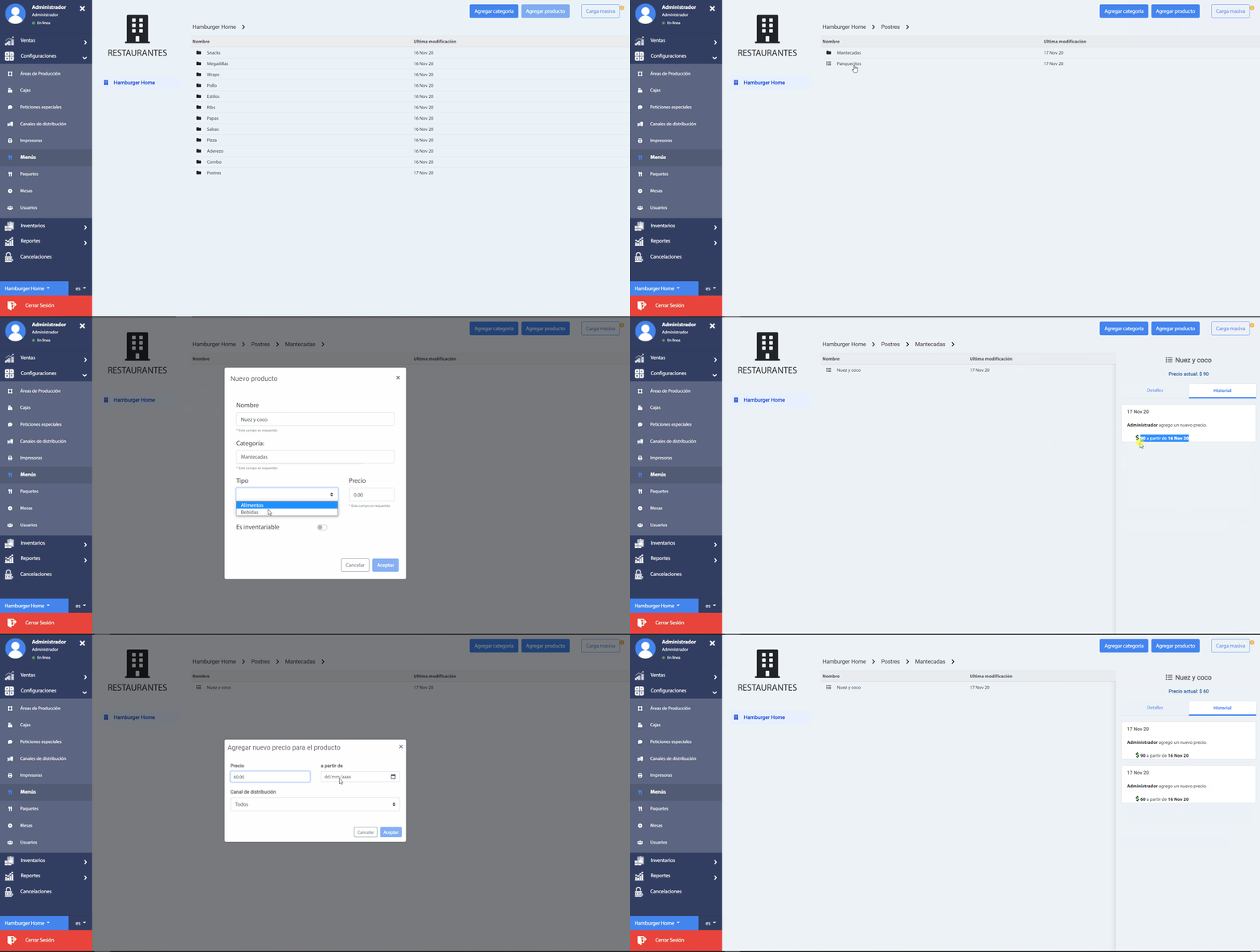
It is possible to edit, delete or change the price of a product by right-clicking on the registration.
You can change the price of a product for a specific distribution channel or for all.
# Massive product load
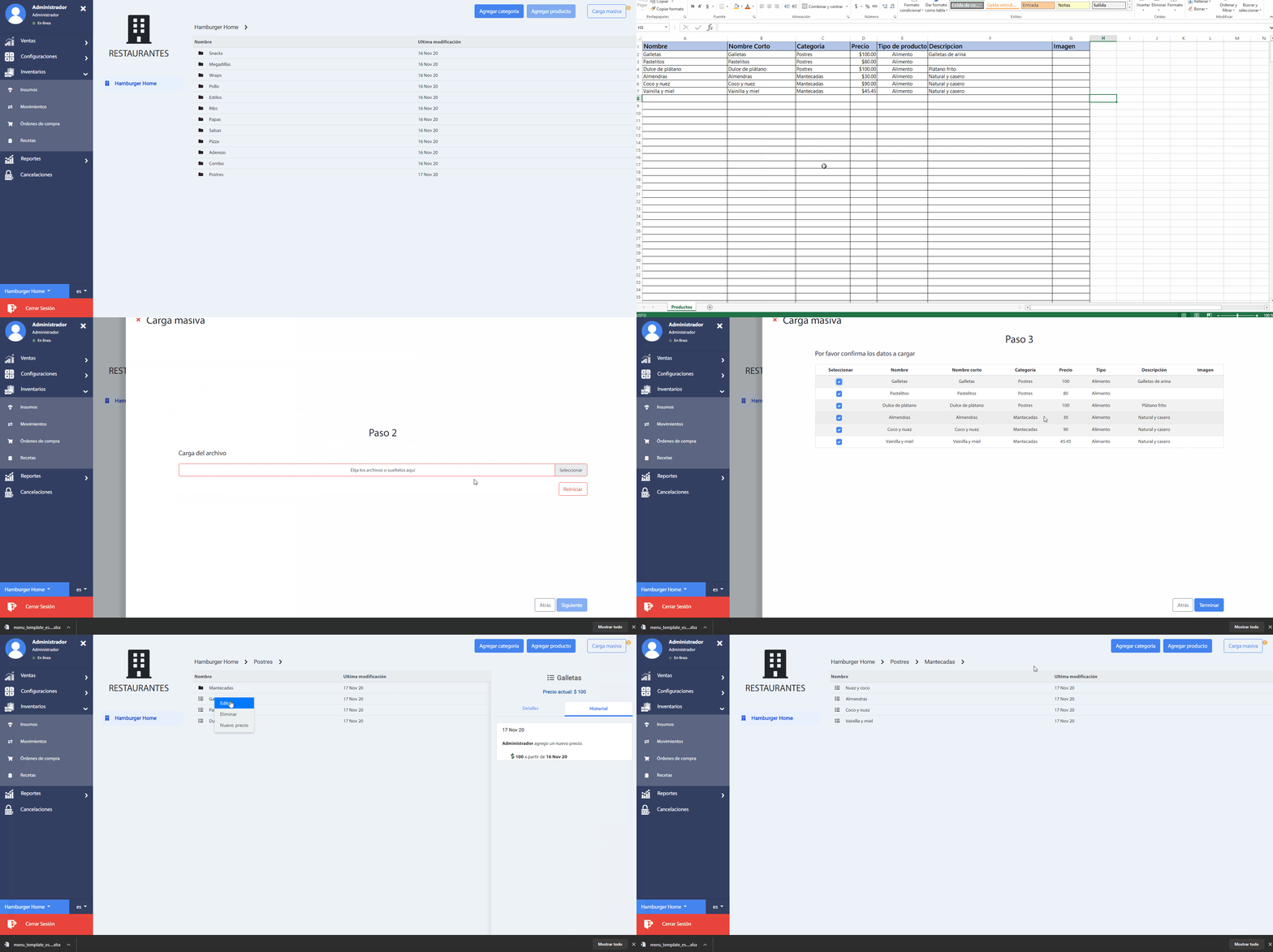
It is possible to insert multiple products in different categories at the same time, by pressing the Bulk load button, which is next to the Add product button, and following the following steps:
Step 1: Download the spreadsheet to be filled in for the mass upload of products and their categories. You must list the products and the category to which they belong, one for each line in the product sheet. If the product category does not exist, it will be created. Click on the Download template and Next button.
Step 2: Load the Excel file. Click on the Next button.
Step 3: Confirm the data to be loaded. You can select or deselect the products to be inserted. Click on the Finish button. At the end, the message "All products have been loaded into the menu successfully" will appear. And we will be able to visualize the products in the corresponding categories. Click on the Close button.
# Add Image to Products
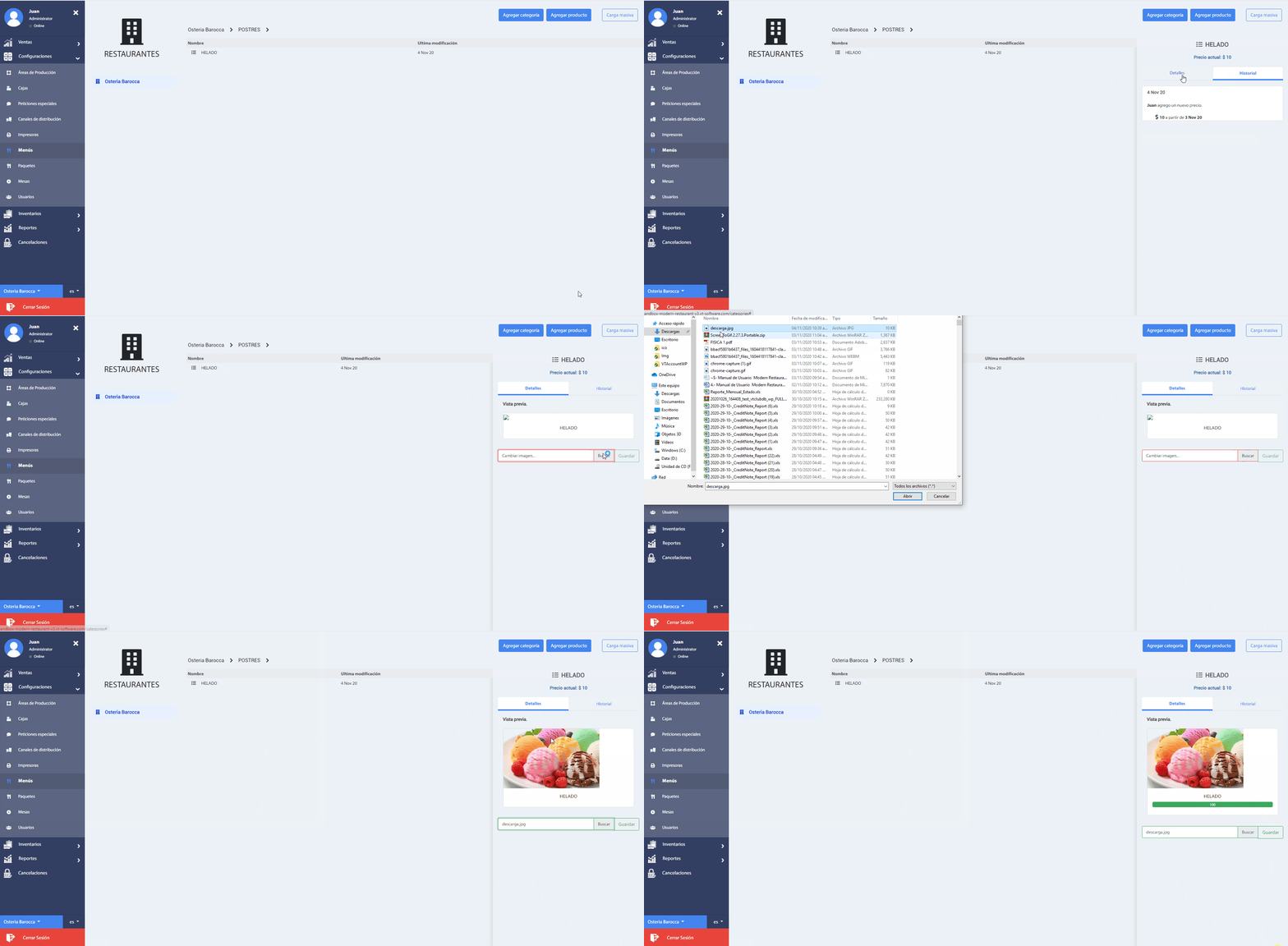
Each product allows you to add an image referring to the product, in the Details tab, as follows:
- Select the desired product
- Look for the image of the product in your computer's directory
- Double click on the image, so that it loads in the preview, and finally Save. button